Grading
Grading scales, the assignment page, the gradebook, and the student report
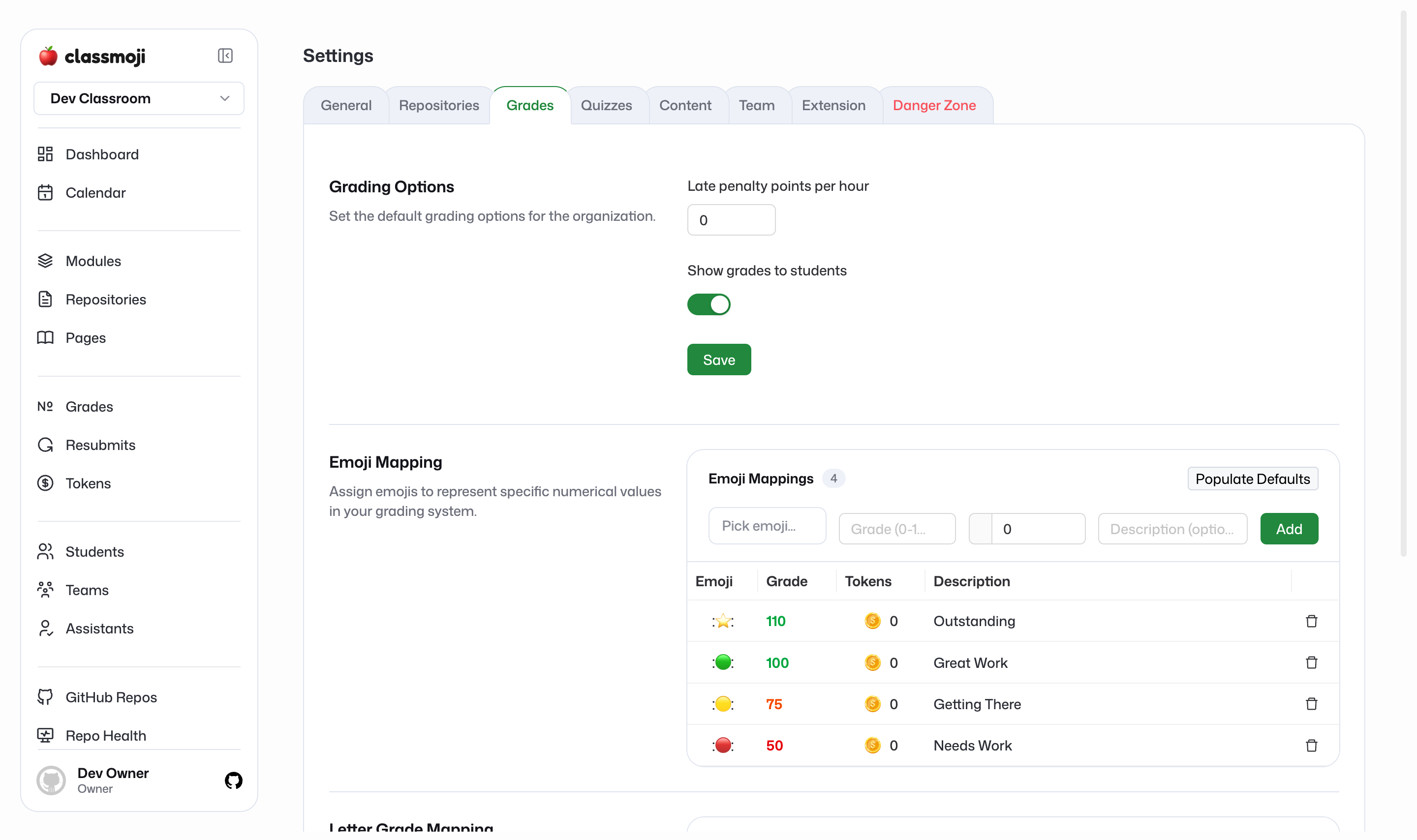
Classmoji grades with a scale you choose: expressive emoji, each mapped to a number, or a plain numeric scale. Either way, every grade on a submission is a number underneath, so weights and averages just work.
Grading scales
Section titled “Grading scales”Set up your scale in Settings > Grades.
Emoji scale: add emoji and give each one a numeric value (0–100). Pick Emoji scale from the Populate template menu to start with 🚀 100, 👍 90, 👀 80, 👎 60 and 😭 0. A submission’s grade is the mean of the emoji given to it; if several graders grade the same submission, their grades average.
Numeric scale: pick Number scale from the Populate template menu to get the built-in scores, score-0 through score-100 in steps of 10. Graders pick a score badge from the same hover picker used for emoji, and each grader holds one score at a time: picking another replaces it.
Grading an assignment
Section titled “Grading an assignment”Open a module, click an assignment, and you’re on its assignment page. Each row is one submission: a student (or team), their repo, and its status.
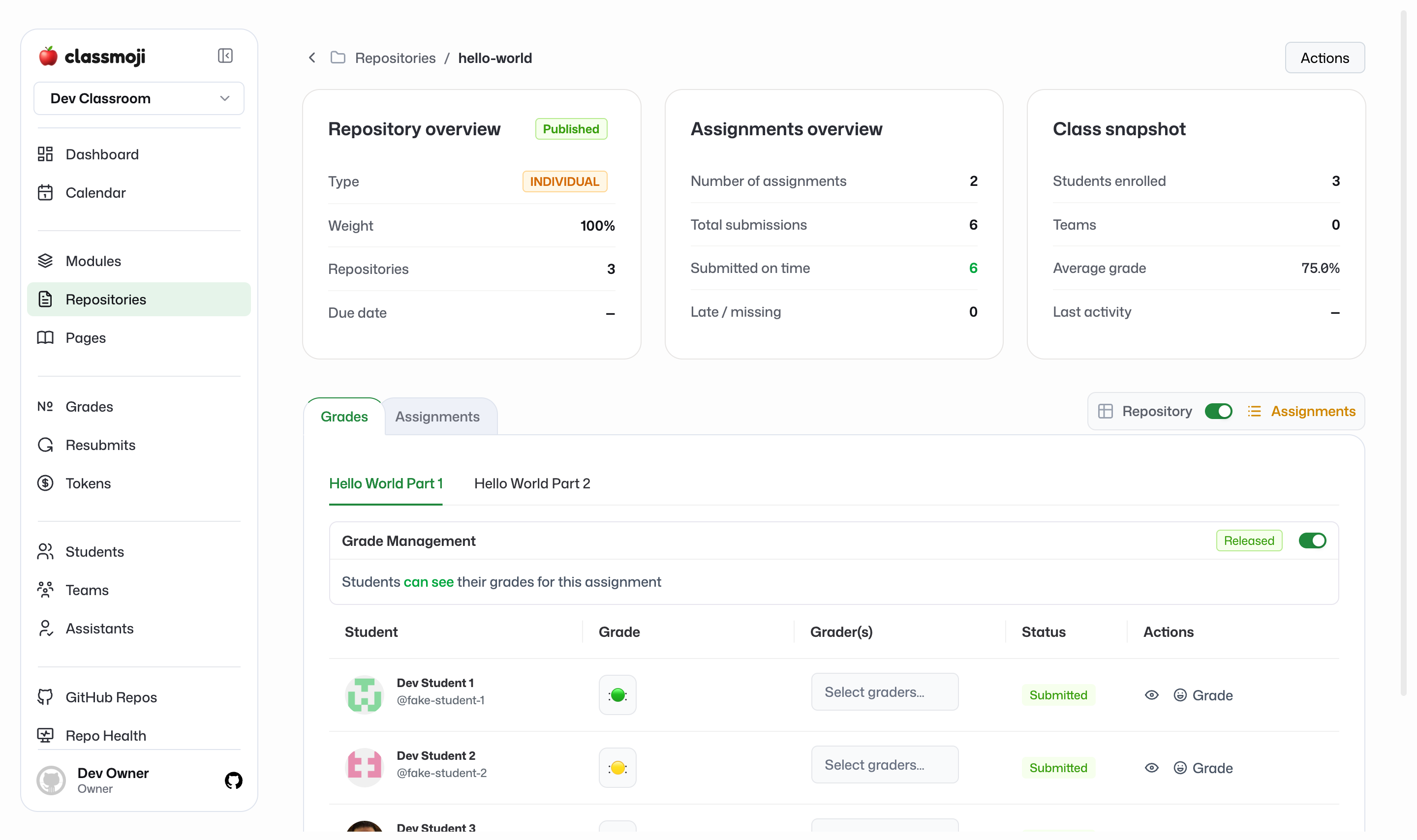
- Emoji scale: click Grade on the row to open the emoji picker, then click an emoji to add it. Click the same emoji again to remove it.
- Numeric scale: the Grade column holds an inline number field. Type a value from the scale and press Tab or Enter to save. Values that aren’t on the scale are refused. Each grader has one score per submission; entering a new one replaces your previous score, while other graders’ scores stay and average with yours.
Filters (All / Ungraded / Late / Not submitted) and the Submitted / Late / Graded / Ungraded tiles keep track of where you are.
Graders
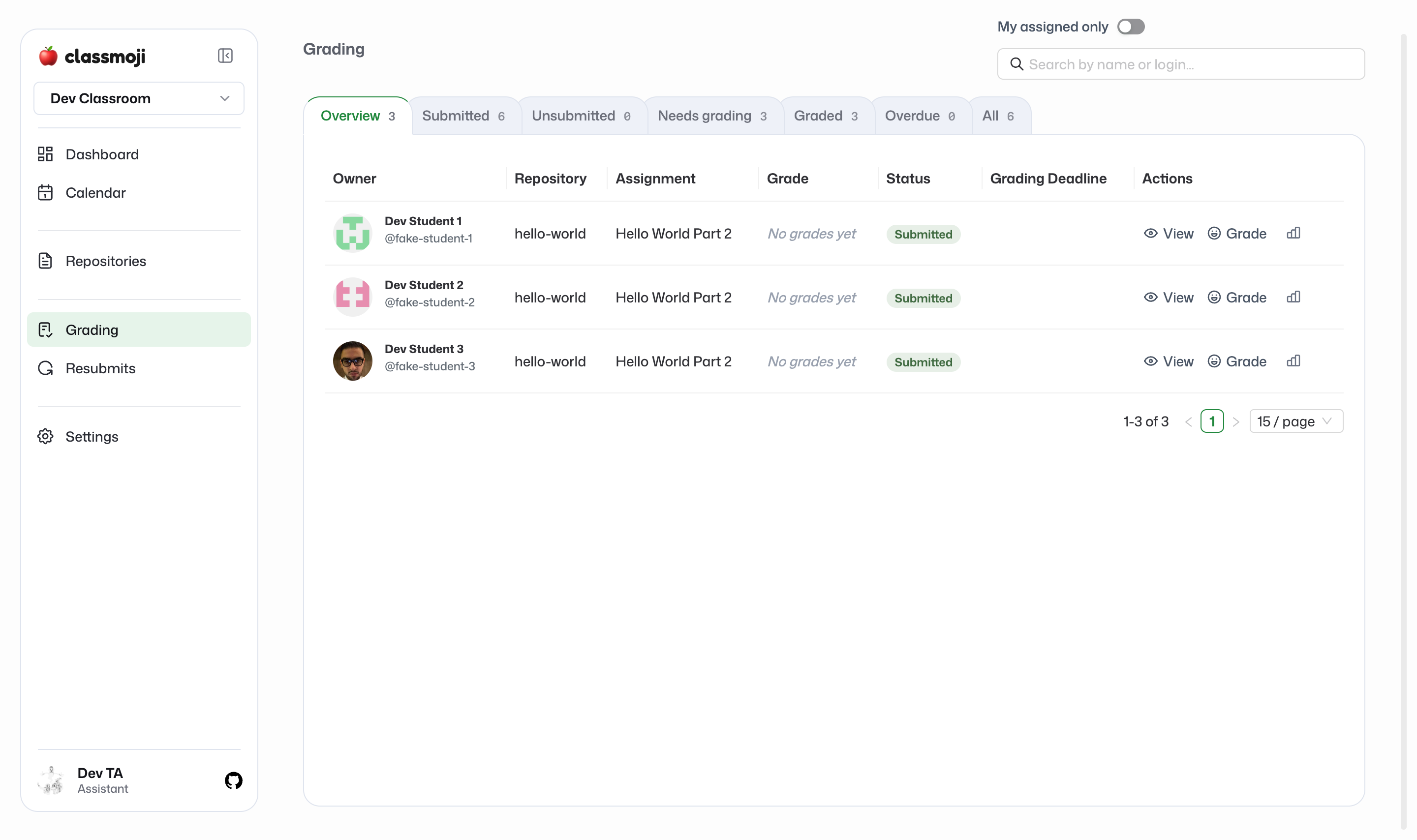
Section titled “Graders”Use Assign graders on the assignment page to split a large class between staff. In a row, the Graders column lists who’s assigned; Assign or Change opens a checklist of staff flagged as graders. Assistants get a grading queue that gathers every submission assigned to them across the class.
Releasing grades
Section titled “Releasing grades”Grades are hidden from students by default. Each assignment page has a Grades released switch. Flip it and students see their grade immediately. Releasing is per assignment, so you can release one while keeping others hidden.
Late penalties
Section titled “Late penalties”Set Late penalty points per hour in Settings > Grades. A submission that lands after the deadline (plus any extension the student bought with tokens) is docked that many points per whole late hour. To forgive a specific submission, open the ⋮ on its row and choose Waive late penalty; Restore late penalty undoes it.
Quizzes follow the same rule: an attempt finished after the due date (plus the hours the student bought) loses that many points per whole late hour, and the quiz’s grading strategy (highest, most recent, or first attempt) picks among the penalised scores. To forgive one student, click the shield (Waive late penalty) beside their late hours on the quiz’s results page, in the attempt drawer, or on their student report: every attempt of theirs on that quiz counts as on time, including later ones. The shield shows only once a student has a late attempt. It waives the late penalty, not taking the quiz: a student with no finished attempt still shows Missing and counts 0. Clicking it again (Restore late penalty) undoes it. Owners and teachers can do this; assistants see that it is waived.
Grade calculations
Section titled “Grade calculations”Repository assignment grade: the mean of the grades given to the submission (emoji values or scores, across graders), minus any late penalty. A submission still missing after the deadline (plus bought hours) counts as 0.
Quiz assignment grade: the score of the attempt picked by the quiz’s grading strategy, minus any late penalty. It counts as soon as the attempt is scored. A student with no finished attempt once the due date (plus the hours they bought) has passed gets a 0, waived late penalty or not; a quiz with no due date never counts as 0. Students see their own score before the penalty, with the late hours beside it; staff totals use the penalised score.
Quiz scores run 0–100, while a repository grade is on your emoji scale. If your top emoji is worth less (or more) than 100, a quiz weighs differently from a repository assignment of the same weight.
Course grade: Σ(grade × weight) / Σ weight over every graded, non-extra-credit assignment, then each graded extra-credit assignment adds grade × weight / 100. Weights are relative, so they don’t need to add up to 100. Repositories carry no weight, forms carry no grade, and there is no drop-lowest. Quizzes count only where quizzes are turned on for the classroom.
Letter grades
Section titled “Letter grades”Map score ranges to letters in Settings > Grades (for example, 90–100 = A, 80–89 = B). The gradebook’s Breakpoints popover shows the same cutoffs. A student’s letter can be overridden on their report.
Gradebook
Section titled “Gradebook”Grades (owner and teacher) is the full gradebook: one row per student, one column per published assignment.
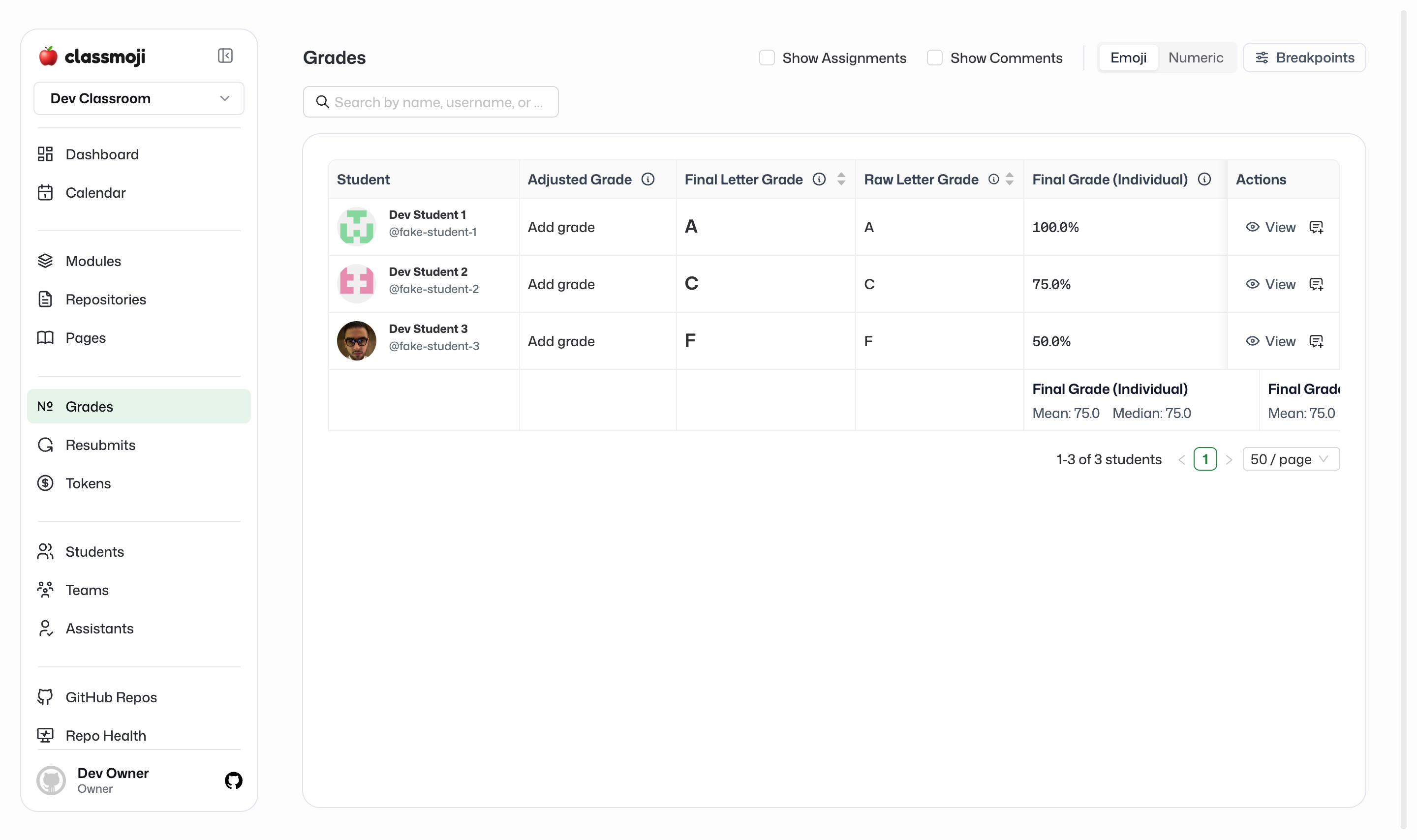
- Search students, and use Show to filter: Everyone, Has something to grade, Has a missing submission, Late somewhere.
- Columns are grouped by module, in course order, each module ending with its Module total (collapse a module to show only its total). Each header shows the title (linked to the assignment page), weight, due date, and how many are left to grade.
- Cells show the score, or To grade (blue), Late (amber), Missing (red), or Not submitted. Quiz cells show the score the total counts (after any late penalty, amber with the late hours when late), Missing (red, counts as 0) once the due date has passed with no finished attempt, Opens with the date for a quiz that has not opened yet, or else In progress or Not attempted; a finished quiz gets a waived chip where you waived the student’s late penalty; form cells Responded or No response.
- Has a missing submission and Late somewhere include quizzes; Has something to grade includes a finished quiz attempt still waiting for its score.
- Grade from the cell: hover Grade to open the picker (emoji, or score badges on a numeric scale). Clicking an existing score jumps to that student’s row on the assignment page.
- Total (the weighted score; hover for the before-late-penalty and individual-only figures) and Letter (from the breakpoints, amber when overridden) stay pinned on the right. A class row at the bottom shows the mean and median.
Student report
Section titled “Student report”Click the eye icon on a gradebook row (or View on the Students list) to open a student’s report at /admin/:class/students/:login (also under /teacher).
It shows the student’s name, login, school ID (owner-editable), and tokens; tiles for Total with letter, Graded so far (quizzes that have not opened yet are not counted), Late (hours, and the points the penalty took), and Final letter override, each counting repository and quiz assignments; then their assignments grouped by module, each with its status, grade, View (Github), Waive late, and Grade now. A quiz row shows the score the total counts (hover it for the score before the late penalty), its late hours, Missing with a 0 once the due date has passed with no finished attempt, Late waived with the shield to restore it, or Opens with the date before it opens. A Private note at the bottom is visible to staff only.